
Stream Buffer-Free in 5 Minutes - Configured for Apollo Group TV
Stop throttling, clear buffering, and beat the sports blackouts.
✅ Tuned & Tested for Apollo Group TV
🚀 5-Minute Setup — Set It & Forget It
📱 Unlimited Devices
🍁 Canadian Pricing – 85% off
Why Buffering Happens (Even with Fast Internet)
The Reality: Major providers like Bell, Rogers, and Cogeco actively “flag” streaming connections on their infrastructure — they don’t just slow you down randomly, they target specific content.
Common signs of throttling:
- The “Weekend Block”: Live TV cuts out or goes black during peak hours (evenings and weekends).
- Sports / Live TV Blackouts: Specific sports networks get targeted during big games.
- VOD Lag: Movies and series load slowly despite your high-speed plan.
The Solution: A properly configured VPN restores a private, stable connection. The step-by-step guide below gets you there. That blue loading circle, simply should not be on your screen!
Easy Subscribe & Install in Under 5 Minutes
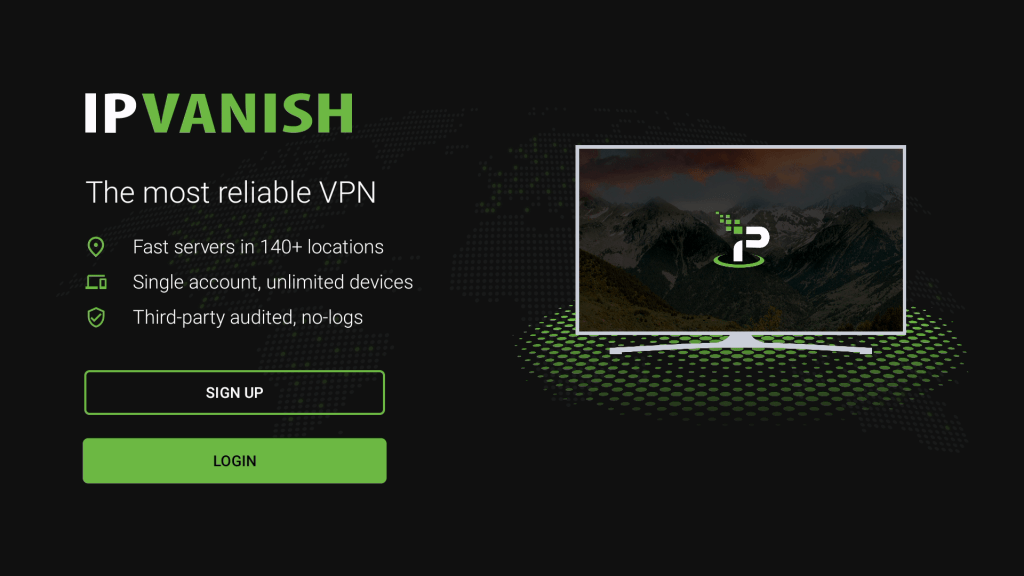
Step 1 of 3 · Subscribe & Download IPVanish
a) Subscribe: On your Phone or Email, click the discounted link below (85% off; $2.53 CAD/m $60.74 CAD for 2 years)
→ Sign Up for IPVanish ←
b) Download the App: Regardless of device, Search, “IPVanish” → Download → Open. (Can use voice prompt or Search in Apps)
c) Login: Use your email and created password to signin.
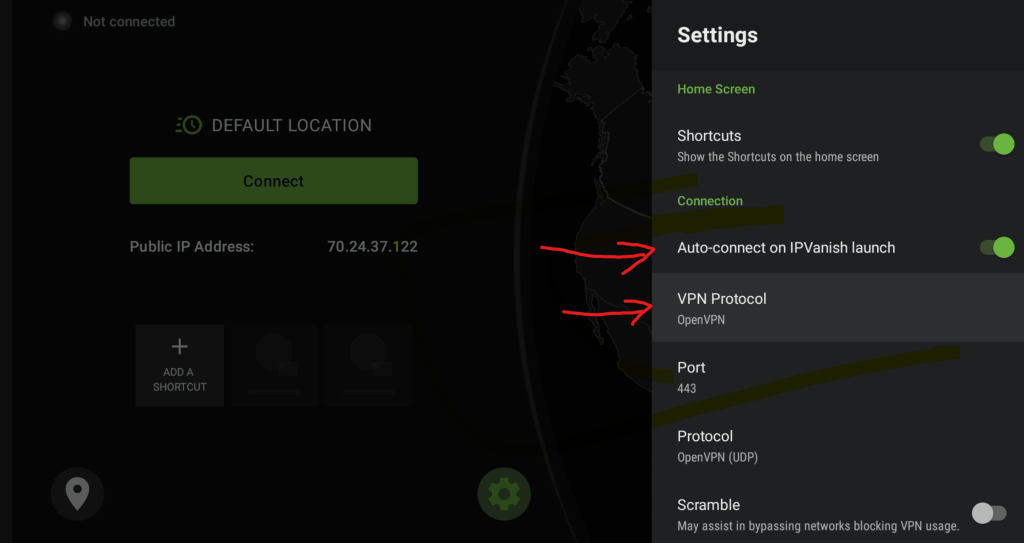
Step 2 of 3 · Configure Settings
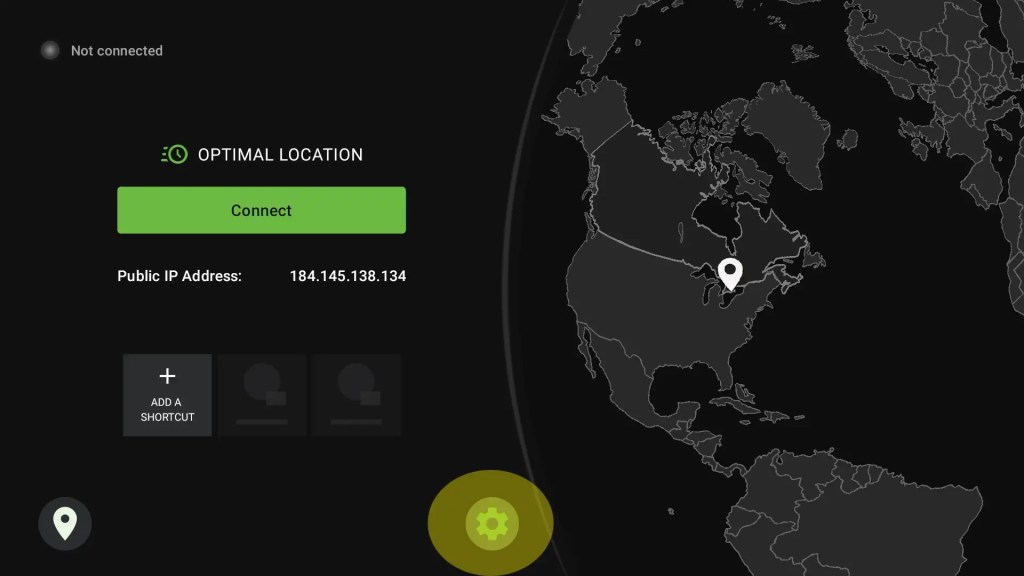
Select the, ‘Gear’ ⚙ on the bottom-right…
a) Settings Change #1: Auto-connect on IPVanish Launch→ ON (green = on)
b) Setting Change #2: VPN Protocol‘ → Select, ‘Open VPN’
c) Setting Change #3: Scramble‘ → Select, ‘ON’
Then, On remote, Select ‘Back’ to return to main screen.
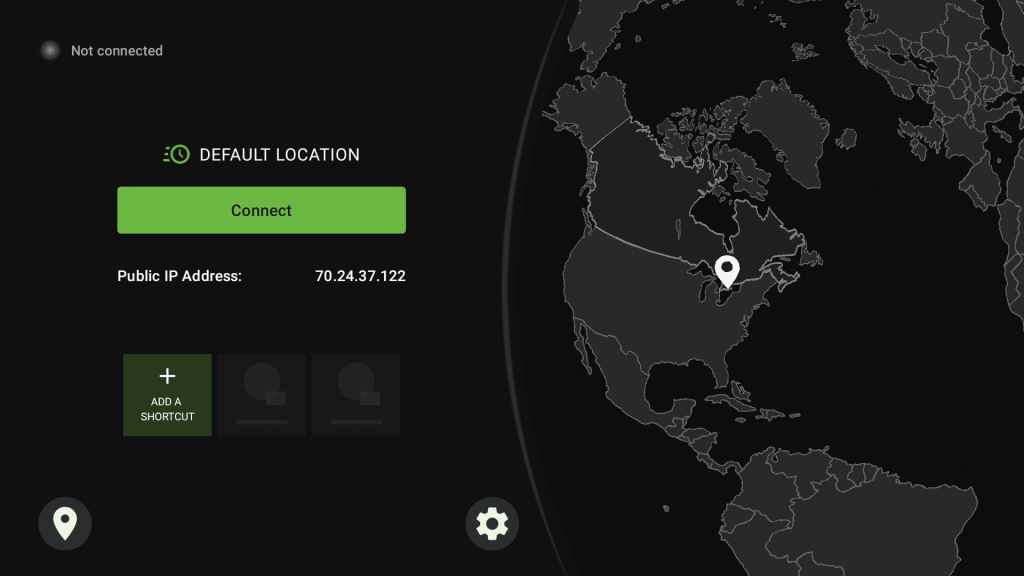
Step 3 of 3 · Set Location and Shortcut
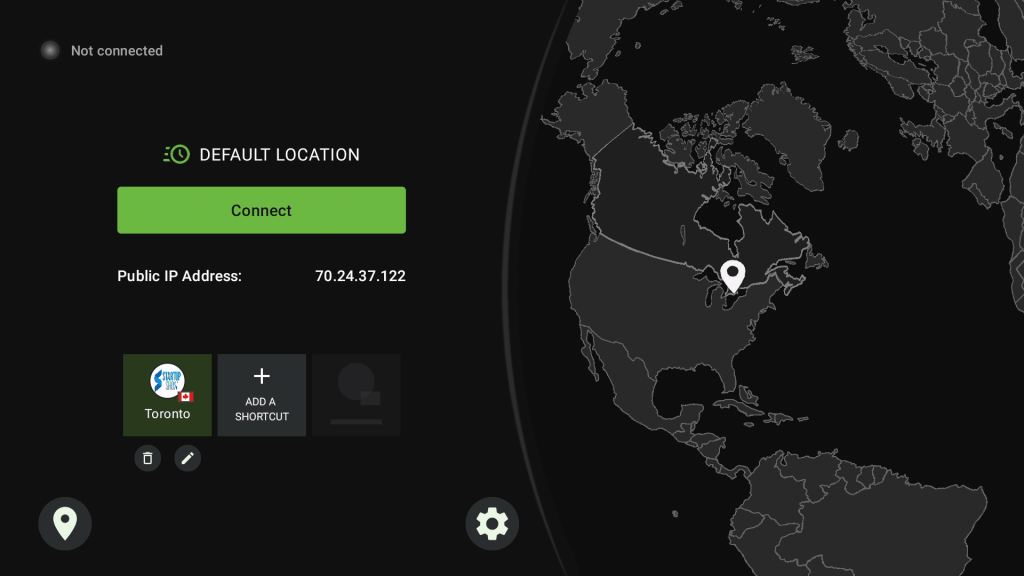
a) Create Shortcut: Select, ‘Add a Shortcut‘. (bottom of main screen – not in the settings)
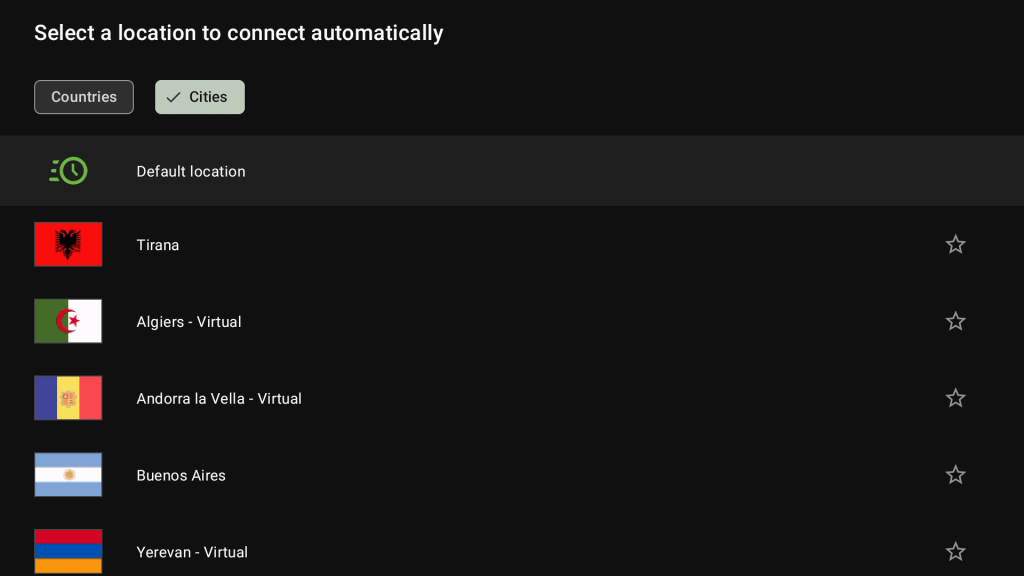
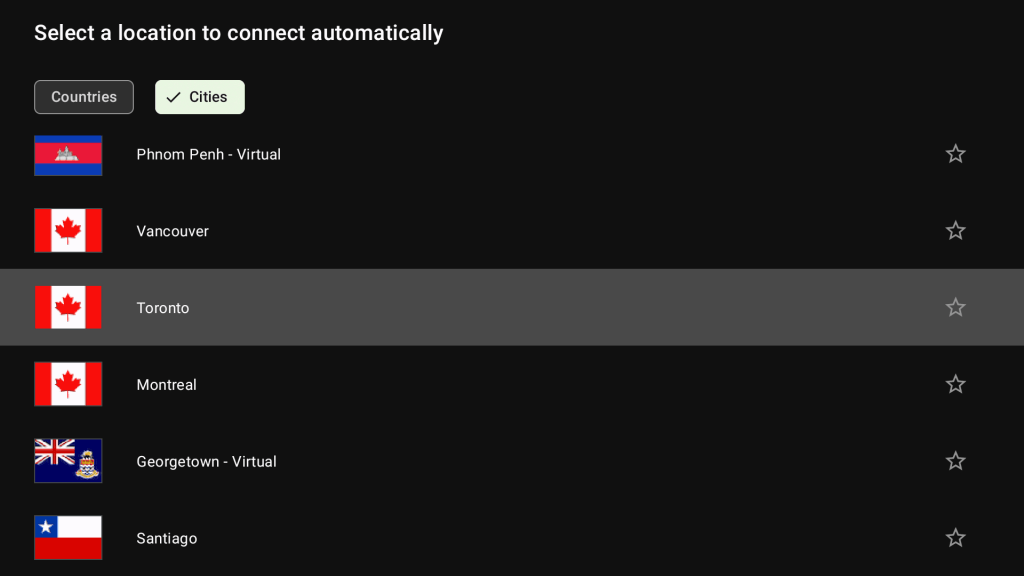
b) Select Local City: Select ‘Cities’ (Go to the right, as Countries is the default selection)
Select the Closest City – Canadian or US)
- ‘Toronto‘ (Also is: Vancouver ; Calgary ; Montreal)
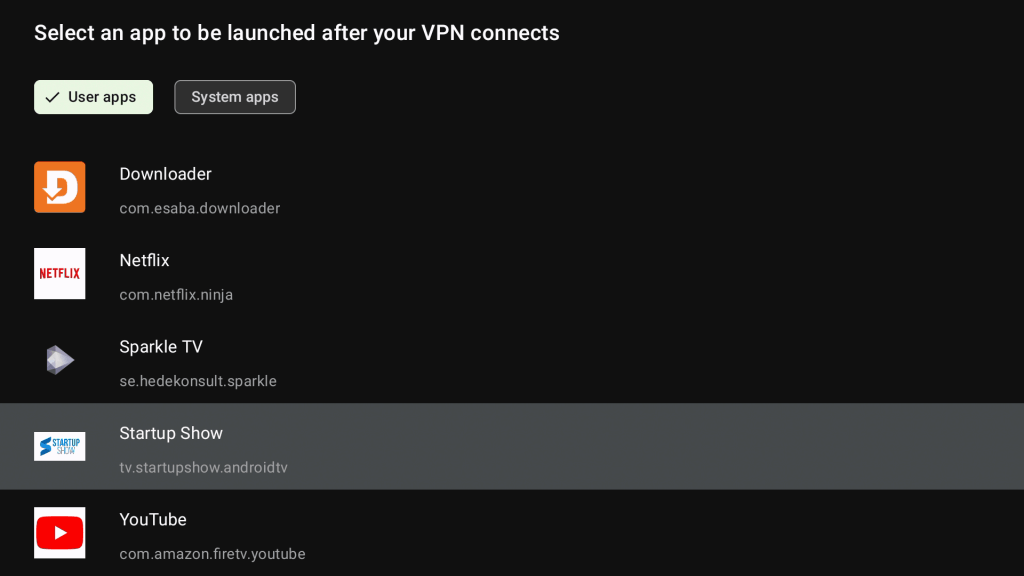
c) Select the App to Launch: Select, User App: ‘Startup Show’.
d) Launch new Shortcut: Select your new custom (square) shortcut ‘Toronto / Startup Show’.
- You will have a first time disclaimer, hit OK;
- Whenever you select the shortcut the VPN will be reconnected, and Startup Show will automatically open.
- In general the VPN will always be running in the background.
Get VPN Protection for Just $2.53 CAD/Month (24 months) – 85% Off + 30-Day Guarantee
Basic Troubleshooting & Tips
1 · Confirm the VPN is active
- Voice-search “IPVanish” on your device to open it.
- Make sure the status in the top-left reads Connected.
- On the IPVanish home screen, check Time Connected — if it only reads a few seconds, the app wasn’t connected before.
- In Settings (gear icon), confirm Auto-connect on launch is ON.
2 · Quick reset (fixes most issues)
On the home screen, tap your Shortcut button. It reconnects you to the saved location from setup and launches Startup Show automatically.
3 · Split tunneling (when other apps are affected)
Turn on Split Tunneling, then tap Manage Apps just below it. Anything you check will bypass the VPN.
- Recommended Apps tab: check Prime Video.
- User Apps tab: check Netflix, Crave, Disney+, etc.
- ⚠️ Important: leave Startup Show / Apollo unchecked.
4 · Cache & reboot
- Clear cache: Startup Show → Settings → Clear Cache → OK → sign in.
- Restart your streaming device and router (clears DNS and memory issues).
- On a Firestick: Home → Settings → My Fire TV → Restart. After any restart you’ll need to reconnect the VPN manually — the connection resets.
5 · Speed check
📈 Run the in-app speed test. Aim for ≥20 Mbps download for smooth live TV and VOD.
6 · Rural or slow internet (Starlink / LTE / DSL)
- Best for connections under 25 Mbps that need a lighter setup.
- Connect to the closest Canadian city (Toronto, Montreal, or Vancouver), using the same configuration as above.
VPN & Throttling FAQ: Your Top Questions Answered
🌐 What is a VPN, and why do I need one?
A Virtual Private Network (VPN) encrypts your internet connection, hides your IP address, and prevents your ISP from throttling — the cause of buffering, slow speeds, or failed connections. It also stops ISPs from blocking video playback. The result is smoother, more reliable streaming over a secure, private connection.
🎥 Why does Apollo TV have two streaming feeds (Live TV and VOD)?
Apollo TV runs two separate feeds: Live TV and Video On Demand (VOD). ISPs typically target and throttle the Live TV feed, especially during peak hours in Canada. A properly configured VPN keeps both feeds streaming smoothly, bypassing those blocks and slowdowns.
🚦 What is internet throttling?
Throttling is when your ISP intentionally slows your streaming connection, often during peak viewing times. It commonly targets IPTV platforms, affecting Live TV or on-demand content.
Not all VPNs handle IPTV streaming equally well — we’ve tested and recommend IPVanish for its speed, compatibility, and server locations.
Important: Not all VPNs effectively prevent throttling (e.g., Express VPN is NOT compatible). IPVanish is recommended due to superior speed, compatibility, and available locations.
✅ How do I confirm I'm being throttled?
- If all of your Live TV and/or VOD shows a black screen with no video, that’s a strong sign your connection is being flagged or throttled — which is exactly why protecting your connection matters.
- Run a detailed speed test (in Apollo TV or Startup Show): Settings → Launch Speed Tests → Detailed.
Interpreting results:
- Live TV or VOD showing “0” or speeds consistently under 5 Mbps points to throttling.
- “Bad IP” messages also indicate throttling or IP blocking.
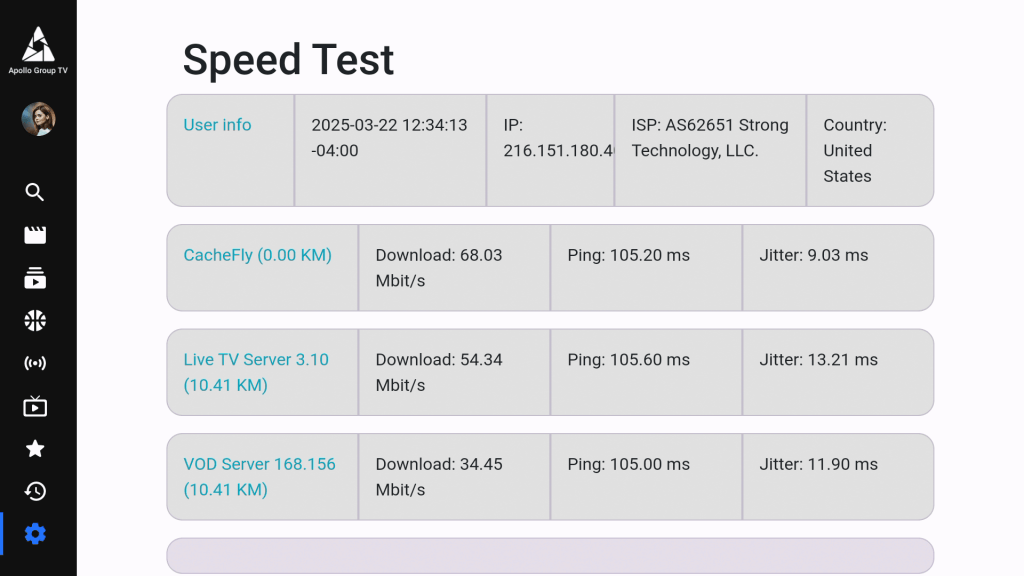 Detailed Speed test with IPVanish[/caption]
📚 Why choose IPVanish over other VPNs?
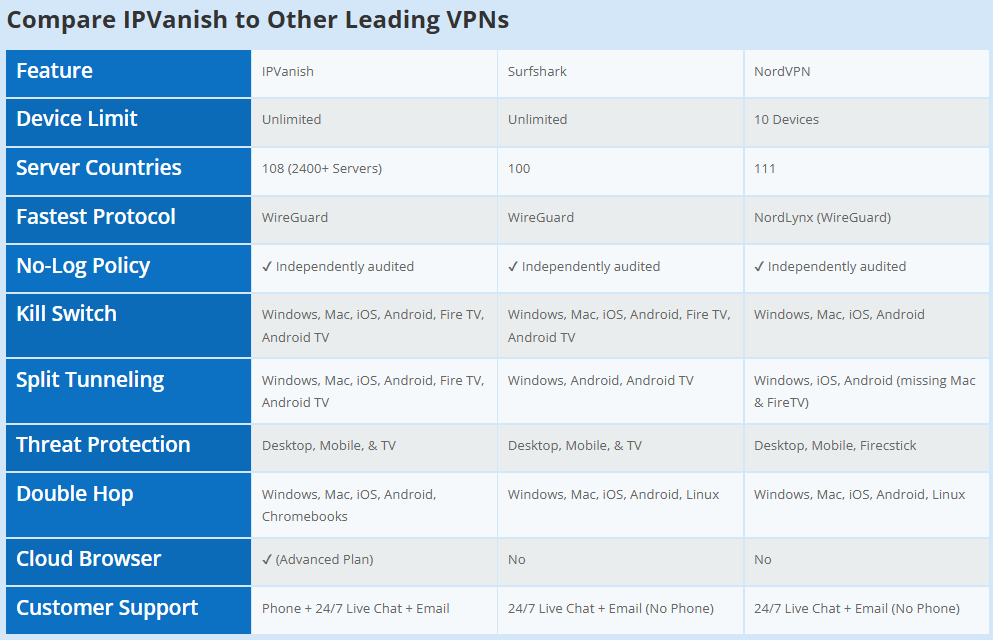
IPVanish provides superior compatibility, stability, and speed—optimized specifically for IPTV services like Apollo TV Canada. It supports unlimited devices, consistently fast connections, and includes advanced features (Kill Switch, Split Tunneling) to protect and enhance streaming quality.
📱 Can I use IPVanish on multiple devices simultaneously?
Yes. IPVanish allows unlimited simultaneous connections, covering every device in and out of your household — phones, tablets, computers, and streaming devices.
🛡️ Does IPVanish keep logs of my activity?
No. IPVanish has an independently audited no-logs policy, so your browsing and streaming stay private.
🔑 How do I quickly sign up and activate IPVanish?
- Visit the official IPVanish discounted link — it should show $3.46 CAD/month (total $82.93 CAD for the 2-year plan).
- Complete checkout (2-year plan recommended for best value).
- You’ll get a confirmation once your payment details are entered; about 5 minutes later, an email arrives where you create your password.
- Install IPVanish on any streaming device or computer from its app store.
- Sign in with your IPVanish email and created password, then configure your settings.
📞 How do I contact IPVanish support?
IPVanish offers 24/7 support:
- Phone: +1 (800) 591-5241
- Live Chat: via the IPVanish support website
- Email: through the support website
Email: Available via support website.
Get VPN Protection for Just $2.53 CAD/Month (24 months) – 85% Off + 30-Day Guarantee
Email:
info@apollotvcanada.com

Location:
Canada