
Apollo Group TV Update 2.6.3: Video Quality, Read More Details and Unwatched Sort
In November 2026, Apollo Group TV released version 2.6.3. It leads with the most common request from users, picture quality, and adds fuller movie and TV show details plus an unwatched-episodes sort.
Here is what changed in this release, and how to get it.
Video quality inside the player
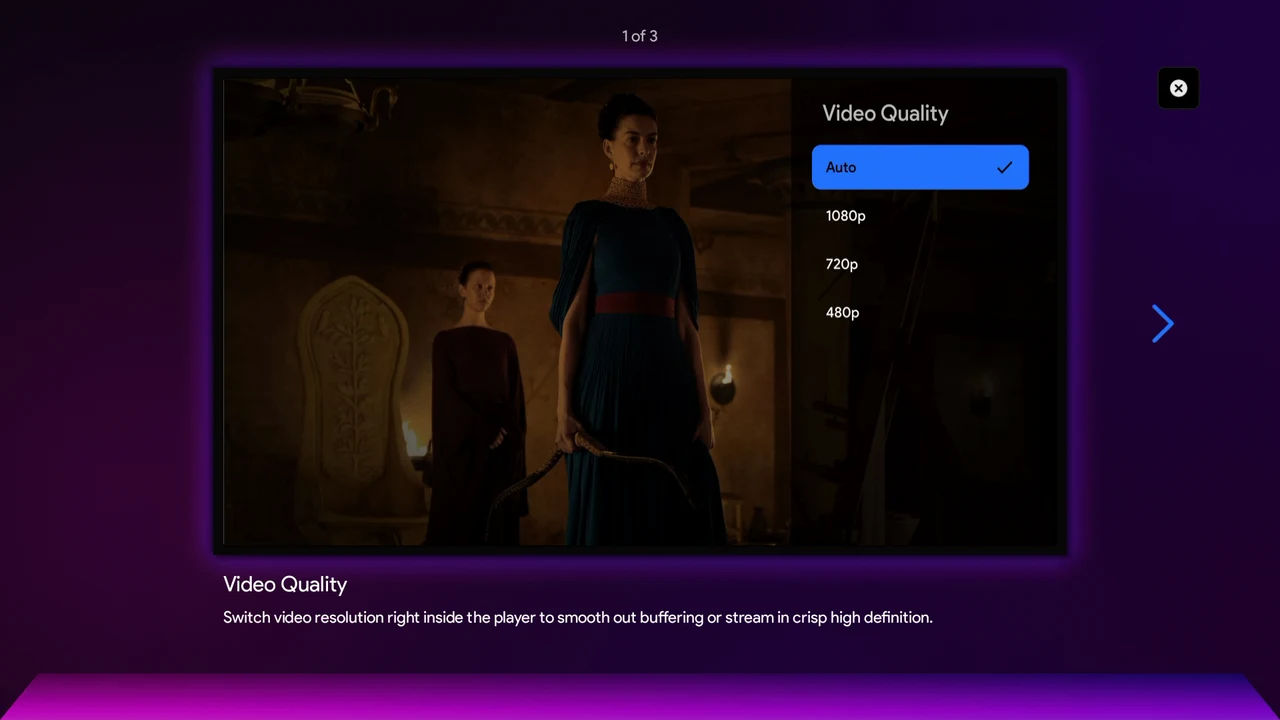
Video Quality now sits inside the player, with four settings: Auto, 1080p, 720p and 480p. During playback, it is under the player's Settings (the gear at the bottom right), so the picture can be changed without leaving what is playing.
Auto adapts to the connection. 1080p gives the sharpest picture when the connection can support it. If a stream keeps stopping to buffer, a lower setting such as 720p or 480p can smooth it out.
The full details with Read More
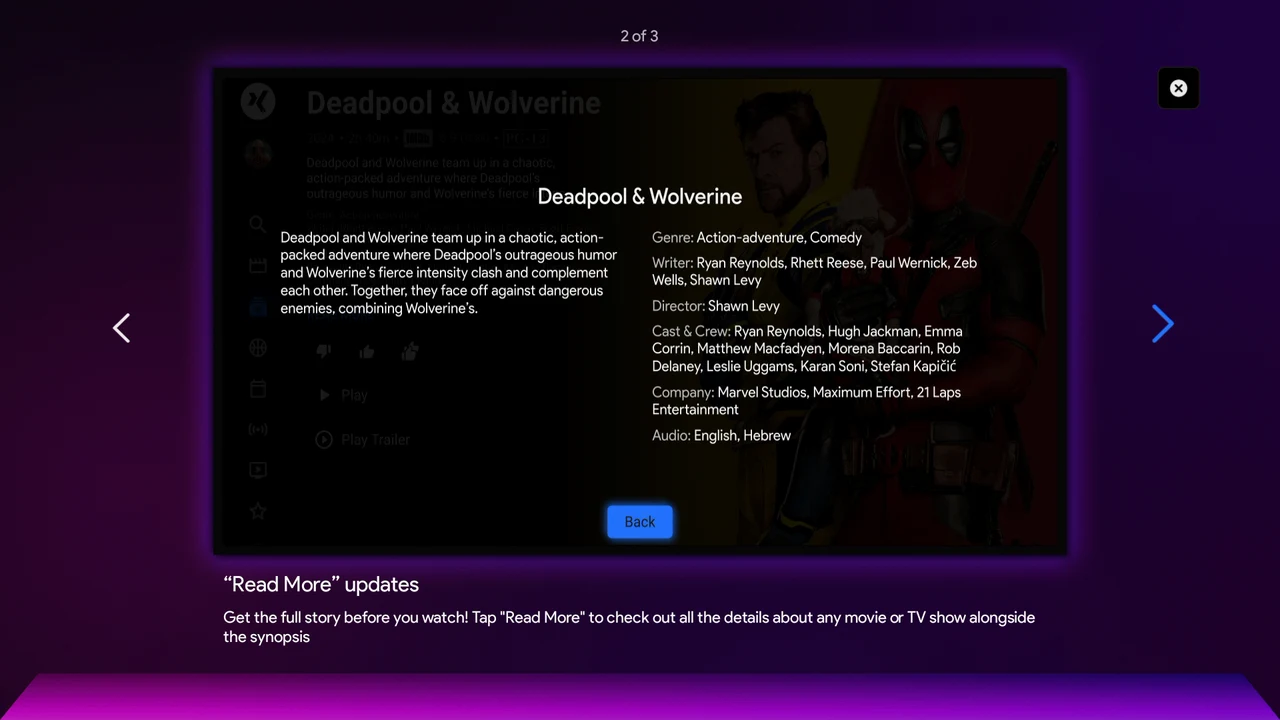
Read More on any movie or TV show now brings up the full details next to the synopsis: genre, writer, director, cast and crew, production company and audio languages.
Sort by unwatched episodes
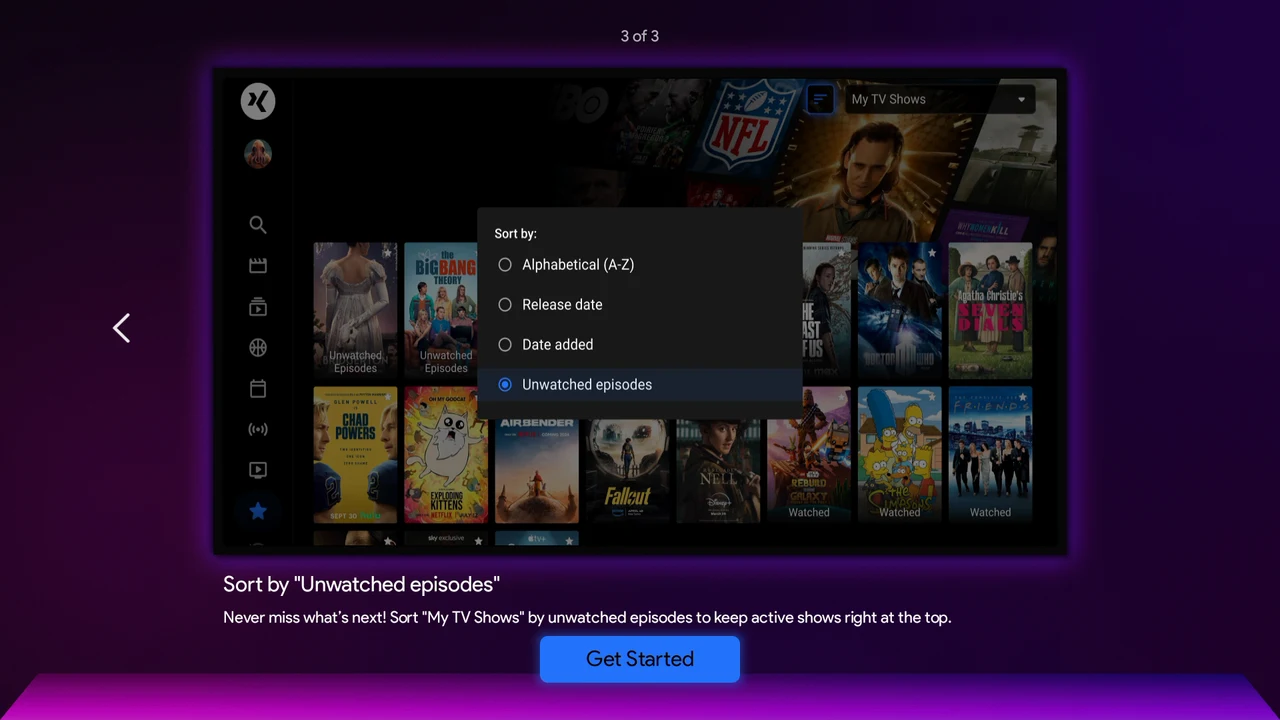
My TV Shows can now be sorted by Unwatched episodes, so shows with new episodes stay at the top of the list. The other options are Alphabetical (A–Z), Release date and Date added.
The sort button sits next to the My TV Shows menu at the top of the screen. Some posters also carry an Unwatched Episodes or Watched label, so it is clear where each show stands.
Update now
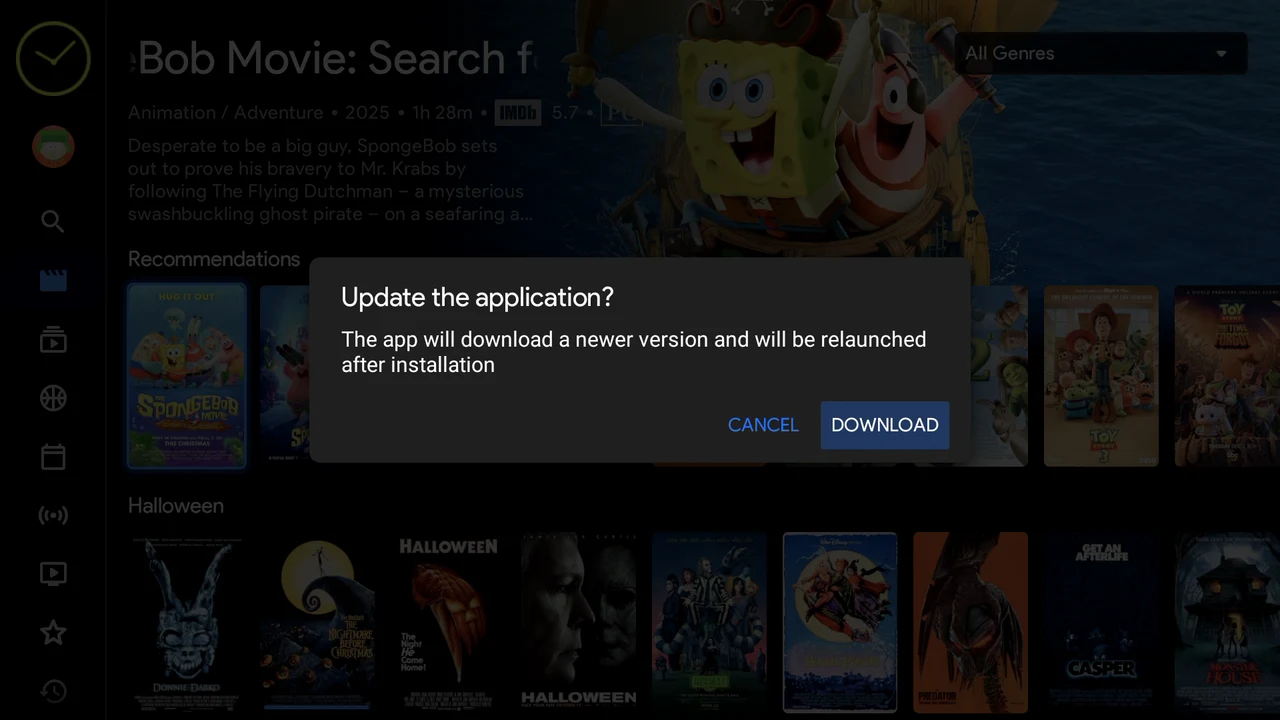
Older versions may prevent signing in, so this update is worth installing now. The app offers it directly: at the "Update the application?" prompt, selecting Download fetches the new version, installs it and relaunches the app. Once it relaunches, the installed version is listed on the Diagnostic screen added in 2.6.2.
→ Apollo TV Canada update guide
Get the most from 2.6.3 with a VPN
Better picture settings only go as far as the connection behind them. Buffering is not always a speed problem: internet providers in Canada can throttle streaming traffic, which is why Live TV can stall in the evening or go black during a big game, even on a fast plan.
A lower Video Quality setting can ease the symptom. A properly configured VPN goes after the cause, and the Apollo TV Canada guide covers the recommended setup step by step, tuned and tested for Apollo Group TV.