
Apollo Group TV Update 2.6.2: Hide Scores, Team Filters and Diagnostics
Apollo Group TV has begun rolling out version 2.6.2 to all users. Where the previous release built the foundation with the dedicated Sports Live hub, this one is a set of targeted quality-of-life improvements drawn directly from user feedback — and one genuinely useful new support tool.
More features are in the development pipeline. Here is what is available in the build right now.
Hide live scores
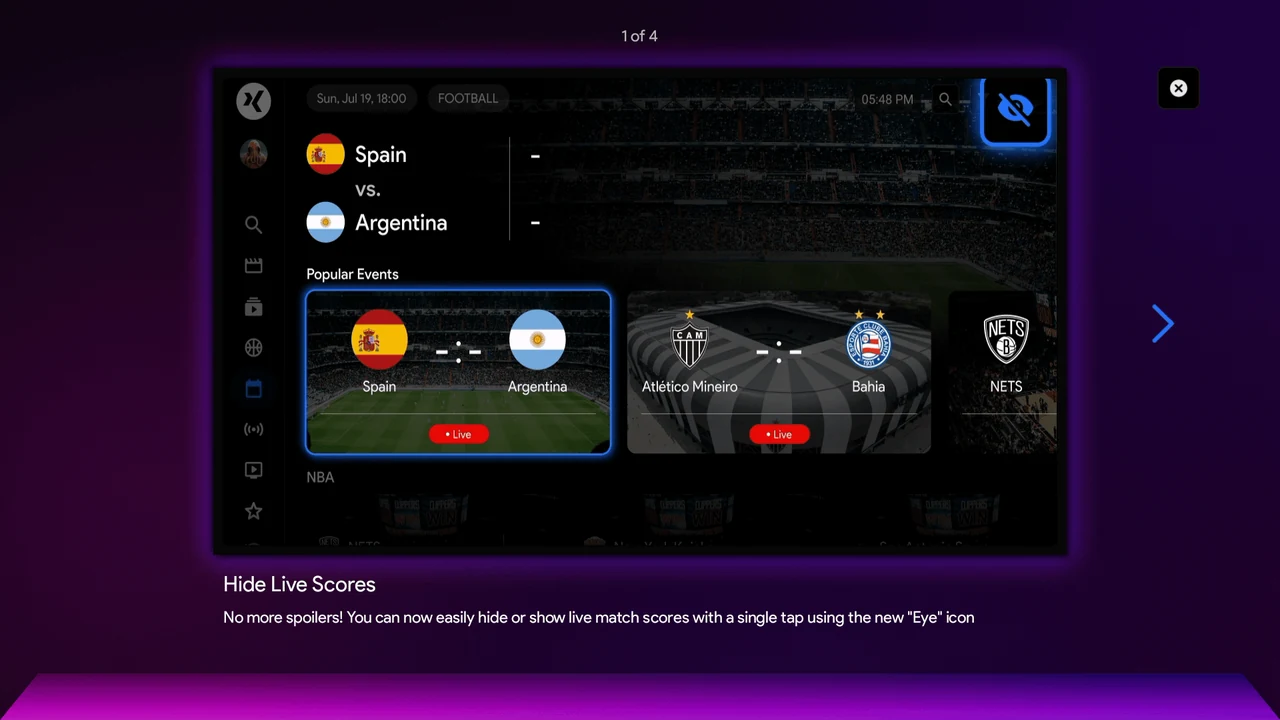
Watching on a delay no longer means dodging spoilers. A new "eye" icon in the top-right of the Sports Live screen hides or shows live match scores with a single tap. Scores stay hidden across the popular events row and the league listings below it, so nothing gives the result away while you scroll to find the match.
Team filters
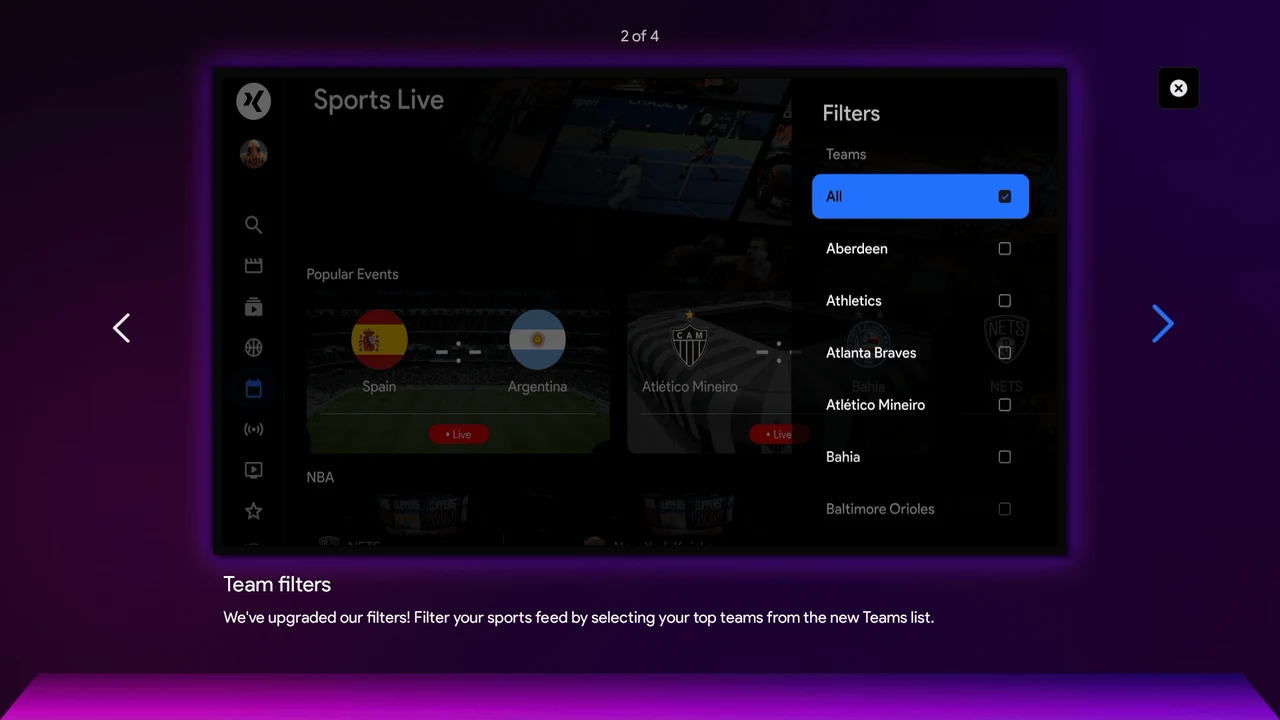
The filter panel has been expanded with a full Teams list. Select the clubs you follow and the sports feed narrows to those teams only — useful if you follow two or three sides across different leagues and don't want to scan the whole schedule every time.
Search for sports
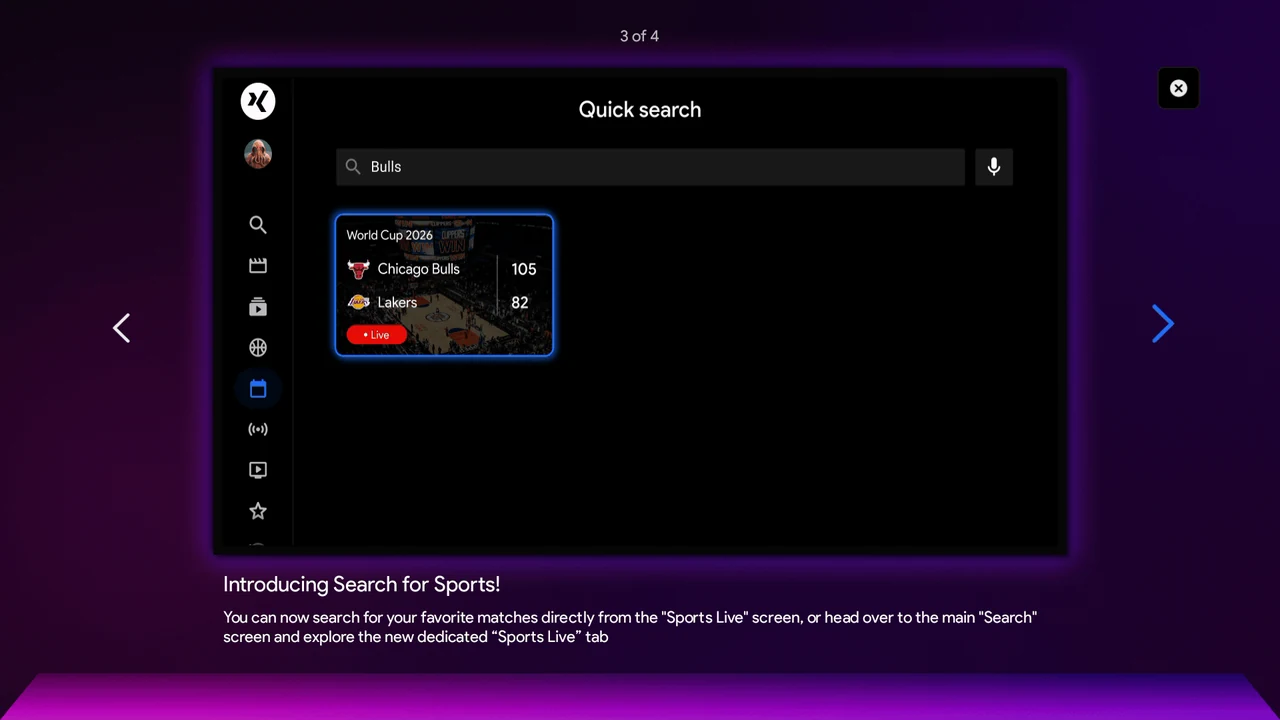
Sports are now searchable. You can search directly from the Sports Live screen, or use the main Search screen, which has gained a dedicated Sports Live tab. Typing a team name returns live and upcoming fixtures with current scores attached.
The new Diagnostic screen
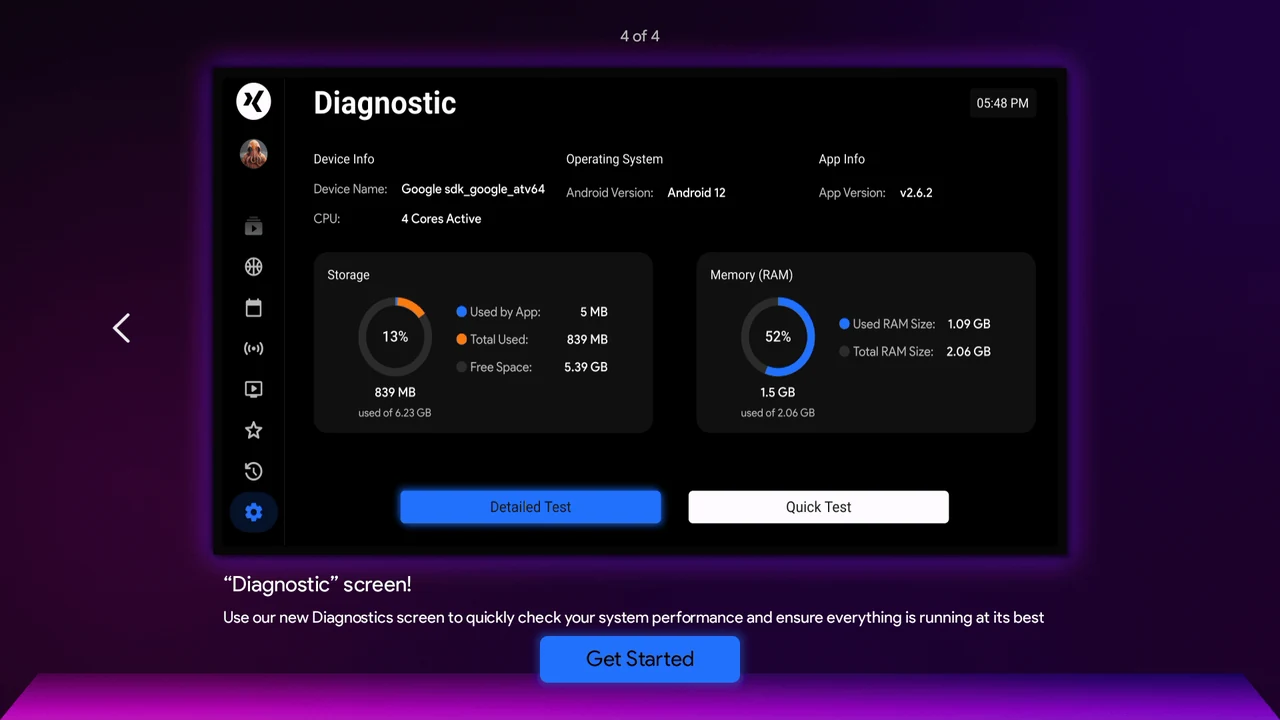
The most practical addition for anyone troubleshooting. The Diagnostic screen reports device name, CPU cores, Android version and installed app version, alongside live storage and memory usage, with Quick Test and Detailed Test options.
This matters more than it might appear. Most playback complaints trace back to one of two things: a device that is short on memory or storage, or a VPN that isn't configured correctly. The Diagnostic screen settles the first question in seconds — and gives you something concrete to report if you do need support.
How to get the update today
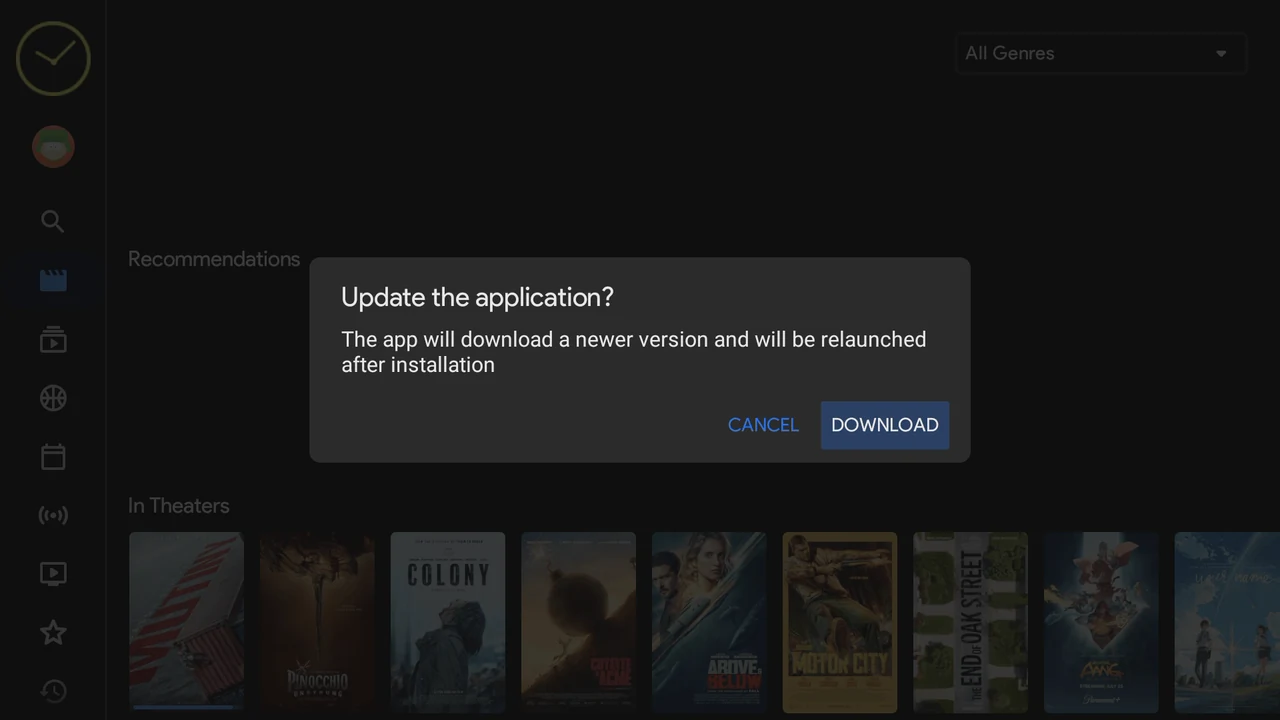
The update is delivered in-app. To trigger it, clear the cache in the Startup Show app settings and relaunch. You will be prompted with "Update the application?" — choose Download, and the app downloads the new version and relaunches itself once installed.
Login credentials and customised settings carry over. Nothing needs to be re-entered.
One rule of thumb
A properly configured device and a properly configured VPN together account for the overwhelming majority of trouble-free setups. If both are right, playback issues are rare. If either is wrong, no app update will fix it.
→ Device setup and optimisation
Full instructions
For step-by-step instructions, troubleshooting, and alternative methods to force the update: